
GDIOAgent Shows Missing Script After Upgrading GameDriver
After you update the GameDriver package in a Unity project, the agent may no longer start, even though the update itself succeeded. Tests and the Test Assistant cannot connect, because nothing is listening on the agent port when the game is running.
Symptoms
Section titled “Symptoms”-
A connection to the game is refused, even though the game is in Play mode.
-
The
GDIOAgentobject in your scene’s Hierarchy has a Script component that reads Missing (Mono Script). -
The Inspector shows a message like this:
The associated script can not be loaded: gdio_unity_agent.dll::gdio.unity_agent.GDIOAgent
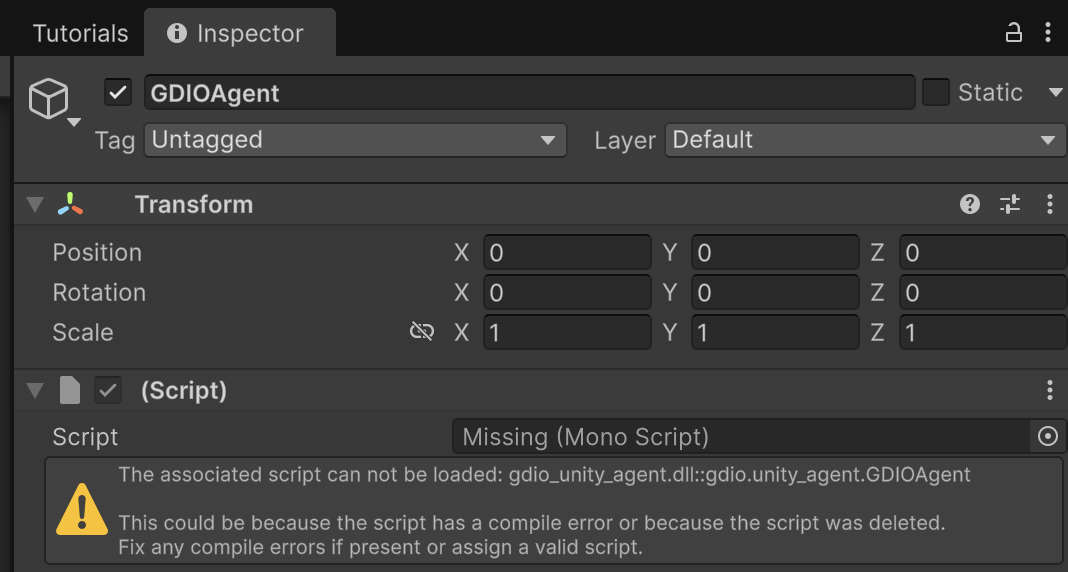
The scene stores a reference to the agent script from the version of GameDriver that was installed when the agent was added. After an update, that reference can stop resolving to the new agent, so Unity loads the object without a working script.
Remove the old agent and add it again, using the new version:
-
Open the scene that contains the agent. This is normally your initial scene.
-
Select the
GDIOAgentobject in the Hierarchy and delete it. -
From the Unity menu bar, choose GameDriver > Get Started > Add Agent to Current Scene.
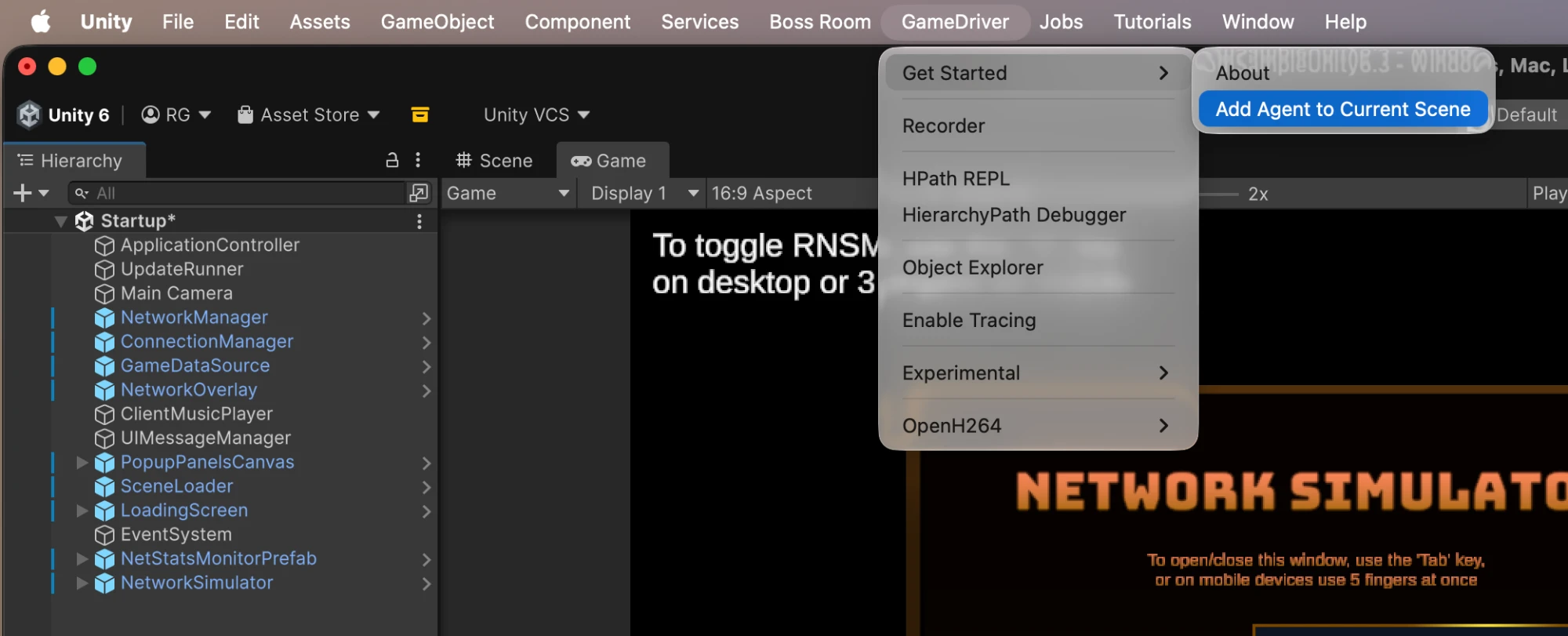
-
Select the new
GDIOAgentobject and confirm that the Script field now showsGDIOAgent, with no warning. -
Save the scene, then enter Play mode and reconnect.
If your project has more than one scene with an agent, repeat this for each of them.
Related: version mismatch errors
Section titled “Related: version mismatch errors”The agent and the API or Test Assistant that connects to it must be the same version. If a connection is refused with a message that the agent is a different version than the API client, update the agent in the project to the version the message expects, then re-add it to the scene as described above.
For the options the agent supports, see GameDriver Configuration File Reference. To add the agent for the first time, see GameDriver Installation Instructions.